
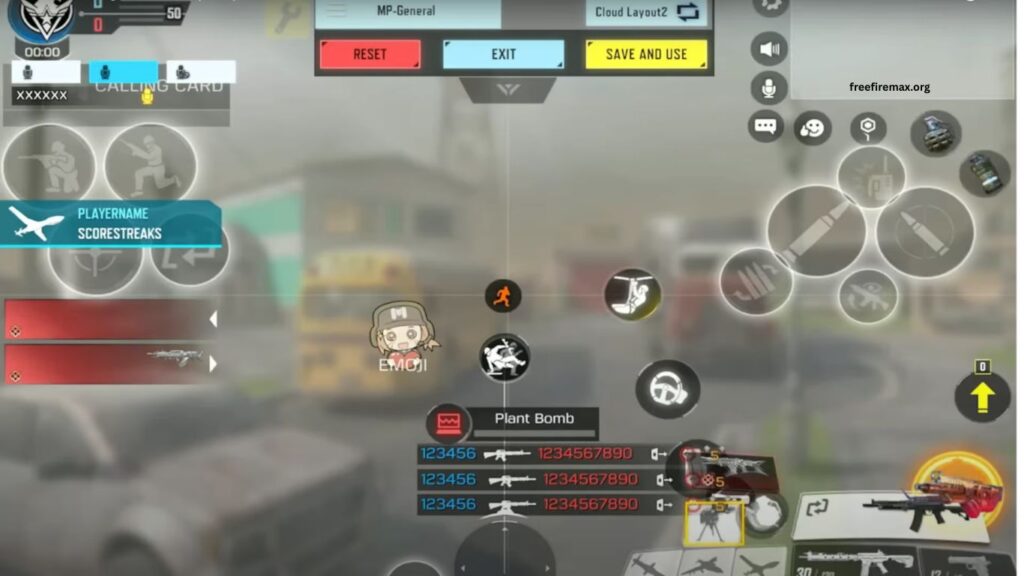
A well-designed HUD can make a major difference in gaming performance. Whether you play fast-paced shooters, battle royale games, or competitive mobile titles, your controls should feel natural, responsive, and easy to reach.
A customized HUD helps reduce unnecessary finger movement, improve reaction time, and create better control during intense gameplay. Instead of using the default layout, adjusting buttons according to your playing style can make moving, aiming, shooting, and other actions much more comfortable.
Read More: Best Weapons for Every Combat Situation
Understanding Your HUD
HUD stands for Heads-Up Display. It contains the on-screen buttons and controls used to interact with a game. Depending on the title, the HUD may include movement controls, fire buttons, jump, crouch, reload, weapon switching, aiming, inventory, and other important functions.
The default HUD is designed for general use, but it may not match every player’s hand position or preferred gameplay style. Customizing these controls allows you to create a layout that feels more natural and responsive.
Choose a Layout That Matches Your Playstyle
Your ideal HUD depends heavily on how you play. Aggressive players who frequently rush opponents may need quick access to shooting, movement, jumping, and crouching. Players who prefer long-range combat may prioritize aiming, scope controls, and weapon switching.
Think about the actions you use most during a match. Frequently used buttons should remain within easy reach, while less important controls can be moved toward the edges of the screen. A practical layout reduces the distance your fingers need to travel between actions.
Place Important Controls Within Easy Reach
Button placement plays an important role in reaction speed. Essential controls should be positioned where your fingers can reach them without changing their natural position.
For example, placing the fire button close to your preferred finger position can make shooting more responsive. Movement and aiming controls should also remain comfortable during long gaming sessions. Avoid placing important buttons too close together because accidental touches can interfere with gameplay.
Adjust Button Size and Transparency
Button size can affect both accuracy and comfort. Very small buttons may cause missed touches, while oversized buttons can cover important parts of the screen.
Increase the size of frequently used controls until they are easy to press without looking directly at them. Transparency can also be adjusted to improve visibility. Keeping controls slightly transparent can provide a clearer view of the game while maintaining easy access to important functions.
Create a Comfortable Finger Position
A good HUD should work with your natural finger position instead of forcing your hands into uncomfortable movements. Consider where your thumbs and fingers normally rest when holding your device.
Players using a two-finger setup may prefer a simple layout with movement on one side and shooting on the other. Players using three or four fingers can distribute additional controls across the screen, allowing multiple actions to happen quickly. The goal is to create a setup that feels comfortable and consistent.
Test Your HUD in Practice
Changing your HUD once does not guarantee perfect controls. Spend time testing the new arrangement in training mode or casual matches before using it in competitive gameplay.
Pay attention to buttons that feel difficult to reach, accidental touches, delayed reactions, or uncomfortable finger movements. Make small adjustments instead of changing everything at once. Testing each modification helps you understand which settings actually improve your performance.
Keep Your HUD Simple
Adding too many buttons to the main screen can make the interface confusing. A clean HUD keeps important controls accessible without overcrowding the display.
Remove or relocate controls that you rarely use during gameplay. Organizing the interface around your most common actions creates a cleaner screen and helps you focus on the match.
Customize Your HUD for Different Devices
Screen size can significantly affect HUD placement. A layout that works well on a large tablet may feel uncomfortable on a smaller smartphone.
When changing devices, take time to adjust button positions, sizes, and spacing. Do not assume that your previous configuration will provide the same experience. A device-specific HUD can improve comfort and make controls feel more responsive.
Improve Your Controls Through Regular Practice
A customized HUD becomes effective through practice. Your fingers need time to develop muscle memory for the new positions. Frequent changes can make this process harder, so give your layout enough time before making major adjustments.
Once the controls start feeling natural, movement and reactions can become more consistent. Over time, your customized HUD can become an important part of your overall gaming strategy.
Frequently Asked Questions
What is a HUD in gaming?
HUD means Heads-Up Display, showing essential controls and game information on the screen.
Why should I customize my HUD?
A customized HUD improves comfort, reaction speed, accuracy, and overall control.
Where should I place the fire button?
Place the fire button where your finger can reach it quickly without changing position.
Should HUD buttons be large or small?
Use sizes that allow accurate tapping without covering important parts of the screen.
How often should I change my HUD?
Make small changes when needed, then practice until the new layout feels natural.
Can a customized HUD improve gameplay?
Yes. A comfortable HUD can improve movement, aiming, shooting, and reaction time.
Conclusion
Customizing your HUD can significantly improve comfort, reaction speed, accuracy, and overall gameplay. A well-organized layout keeps essential controls within easy reach while reducing accidental touches and unnecessary finger movement. Test different positions, sizes, and transparency settings until you find a setup that matches your playstyle. With regular practice and consistent controls, your customized HUD can help you play more confidently and efficiently.